Add-on · Appointments
Appointments from the chat, in your Google Calendar
Visitors pick a day and time without leaving the chat or WhatsApp, and the appointment lands in the assistant's Google Calendar with them as a guest. You set the hours; Xerra only looks at when you're busy.
Optional add-on, per organisation. Included during the demo.
For your visitors
Booking, without leaving the chat
No separate forms or booking pages: it all happens inside the conversation, on your website or on WhatsApp.

01An invitation, if you want one
After a few seconds, on the pages you choose and only once per visitor, a card appears with the photo of whoever they'll see. There's also a button at the start of the chat, such as “Book a call”.
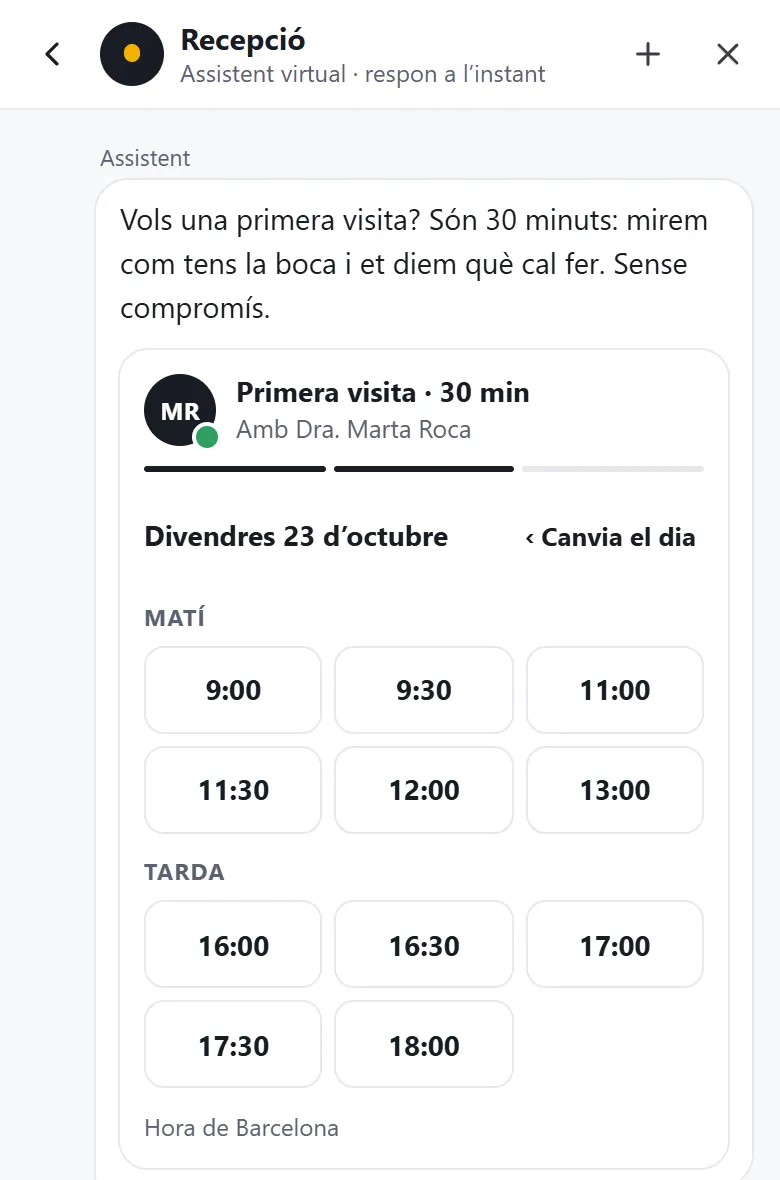
02They pick a day and time
Only the calendar's free times show up, in the business's time zone and, if the visitor is elsewhere, in theirs too.
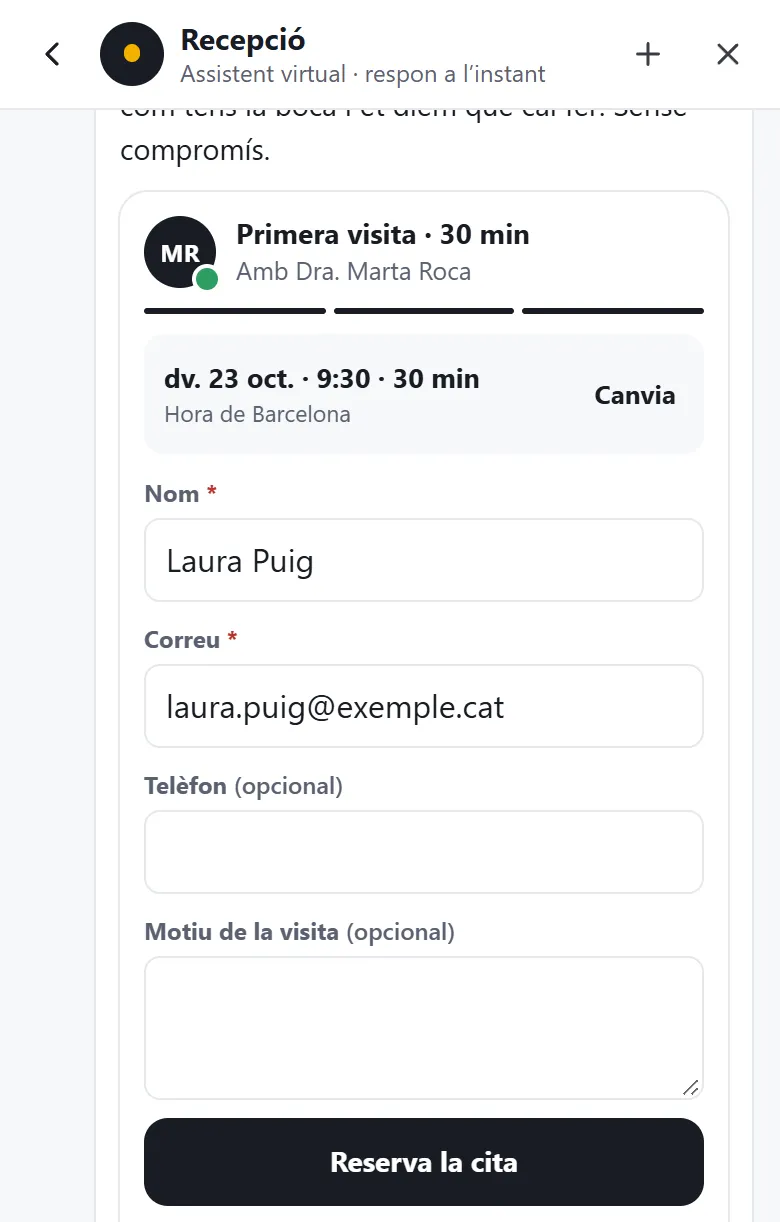
03They add their details
Name and email and, if you want, phone and reason for the visit.
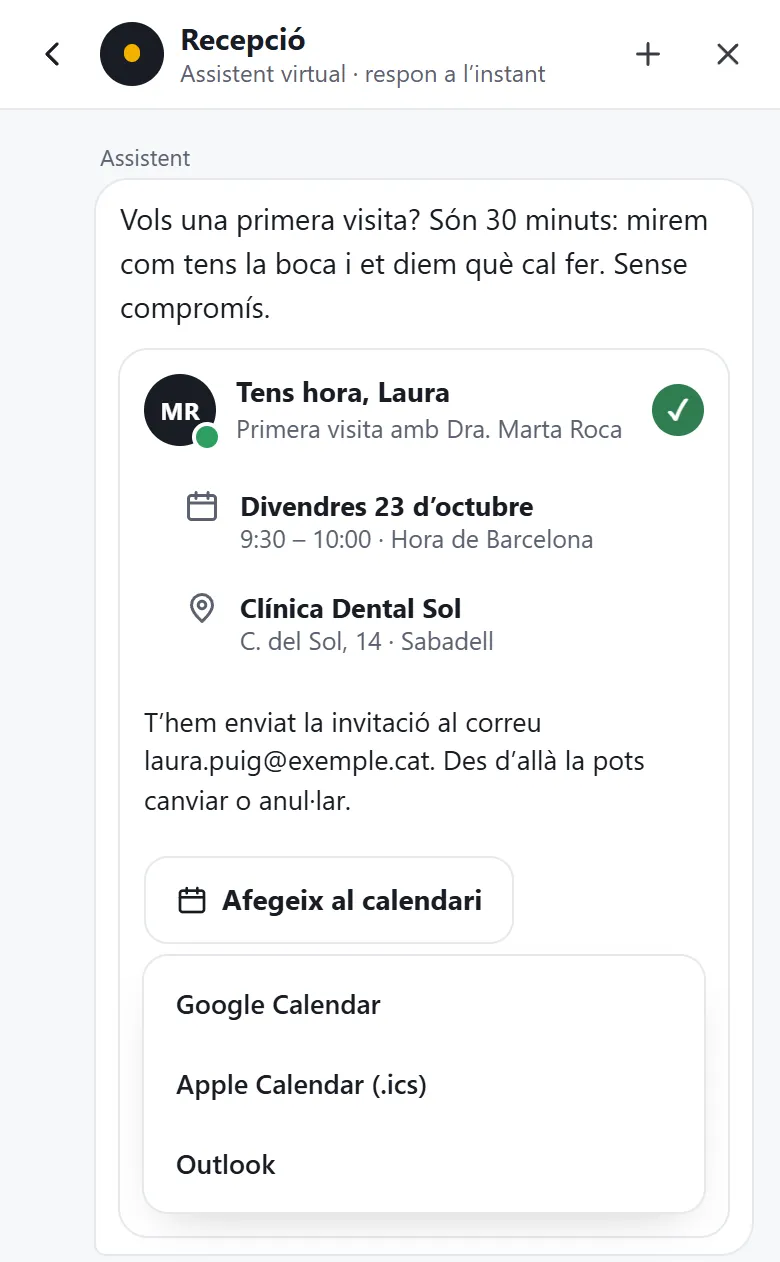
04Appointment confirmed
Google sends them the invitation, and “Add to calendar” saves it to theirs.
Screenshots of the chat with sample data from Clínica Dental Sol, a made-up business. The chat is shown in the visitor's language.
- The invitation and the start button
- If you turn it on, after the seconds you choose, on the pages you want and only once per visitor, a card appears with the photo, name and role of whoever they'll see. The start of the chat can have a button such as “Book a call”, and the assistant also offers to book when someone asks for an appointment.
- No mix-ups with the time
- Times show in the business's time zone, with the city next to them (“Barcelona time”). If the visitor is in another time zone, the card tells them what time that is for them, and the Google invitation reaches them in their own time.
- “Add to calendar”
- On the confirmation, visitors save the appointment with one tap to Google Calendar, Outlook or Apple Calendar (.ics).
- Changes and cancellations
- Visitors change or cancel it from the Google invitation, like any other. If it's cancelled or you delete it from the calendar, Xerra notices on its own, marks it in the conversation and offers that time again.
- No double bookings
- Each time can only be booked by one person. Right before confirming, Xerra checks the calendar again.
On WhatsApp too
If the assistant answers on WhatsApp, it offers booking there with list buttons: pick a day, pick a time, type an email and confirm. The appointment lands in the same calendar.
There are slots for a first visit this week. Pick a day that suits you.
9:41Pick a dayShall I confirm it?
First visit
Friday 23 October, 9:30 – 10:00
At C. del Sol, 14 · Sabadell
Invitation to laura.puig@exemple.cat
9:41ConfirmChange the timeOn the platform
How to set it up
It's ready in a few minutes, from the Xerra platform. Each assistant has its own calendar, hours and appointments.
Turn on the add-on
In Integrations, on the Google Calendar card. During the demo it's included: it says “Included” and you can connect an assistant straight away.
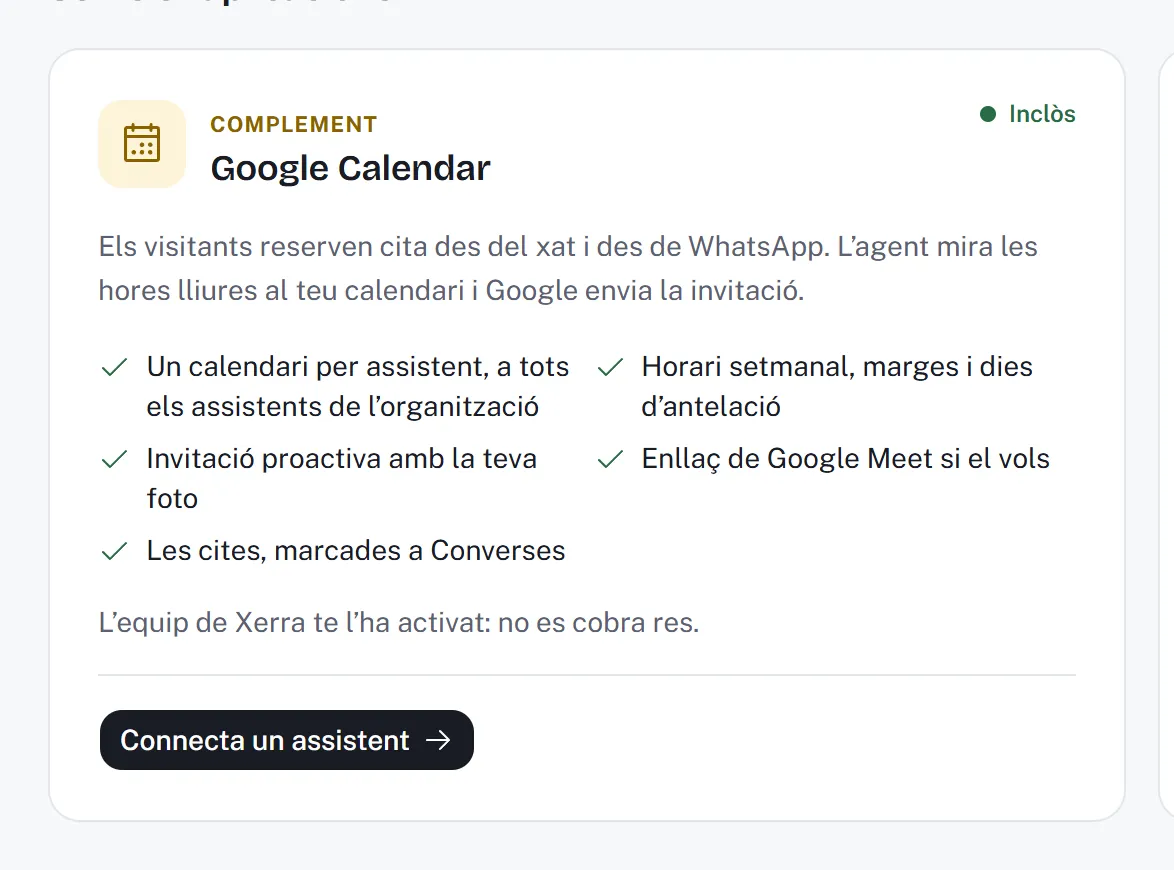
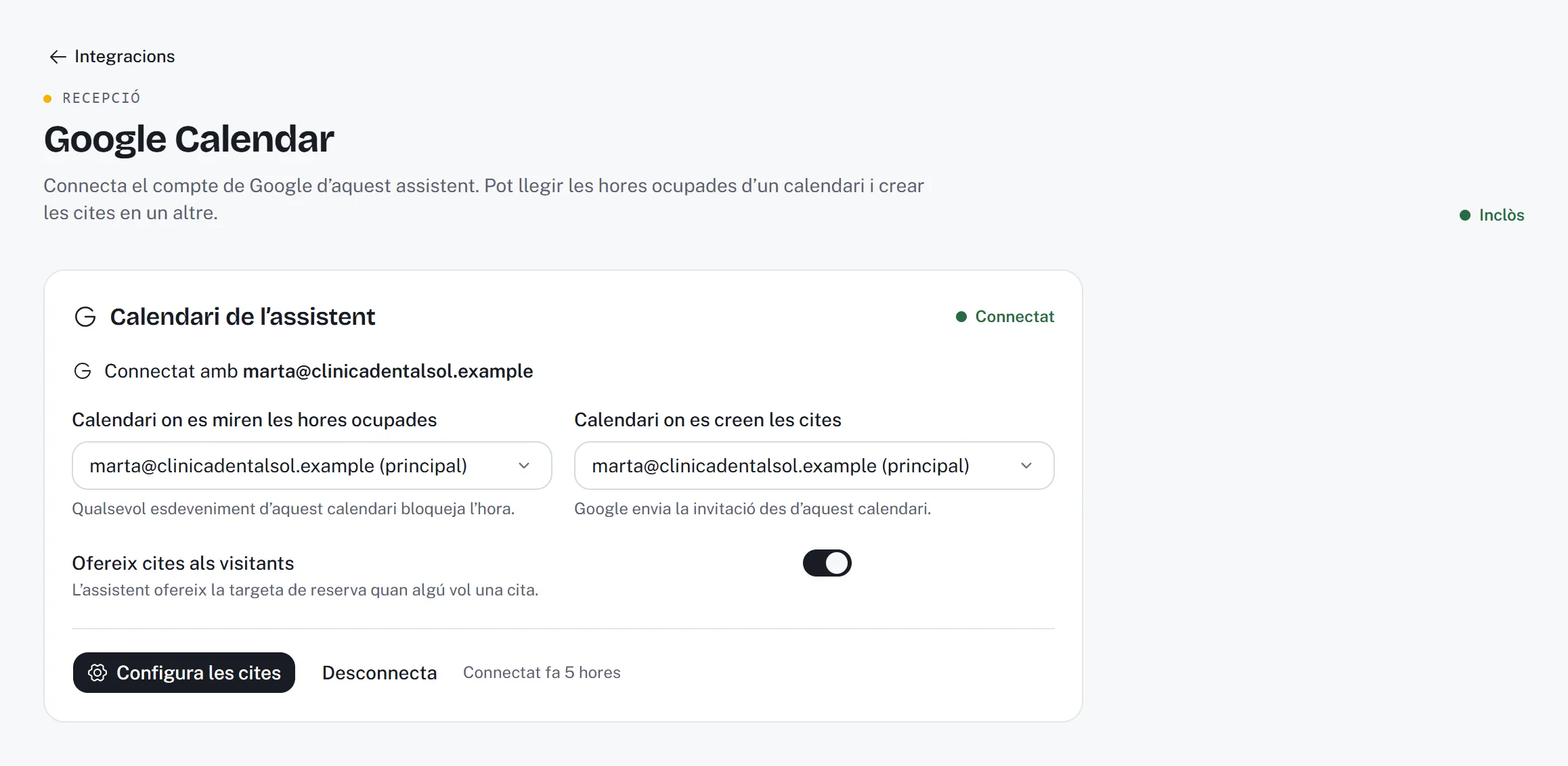
Connect the assistant's Google Calendar
On the assistant's Google Calendar page, “Connect Google Calendar” takes you to Google, which asks for your permission for Xerra on its usual screen. Back in Xerra, you choose the calendar used for busy times and the calendar where appointments are created, and switch on “Offer appointments to visitors”.
Set up the appointments
In “Set up appointments” you decide what can be booked and how. The preview next to it changes as you type.
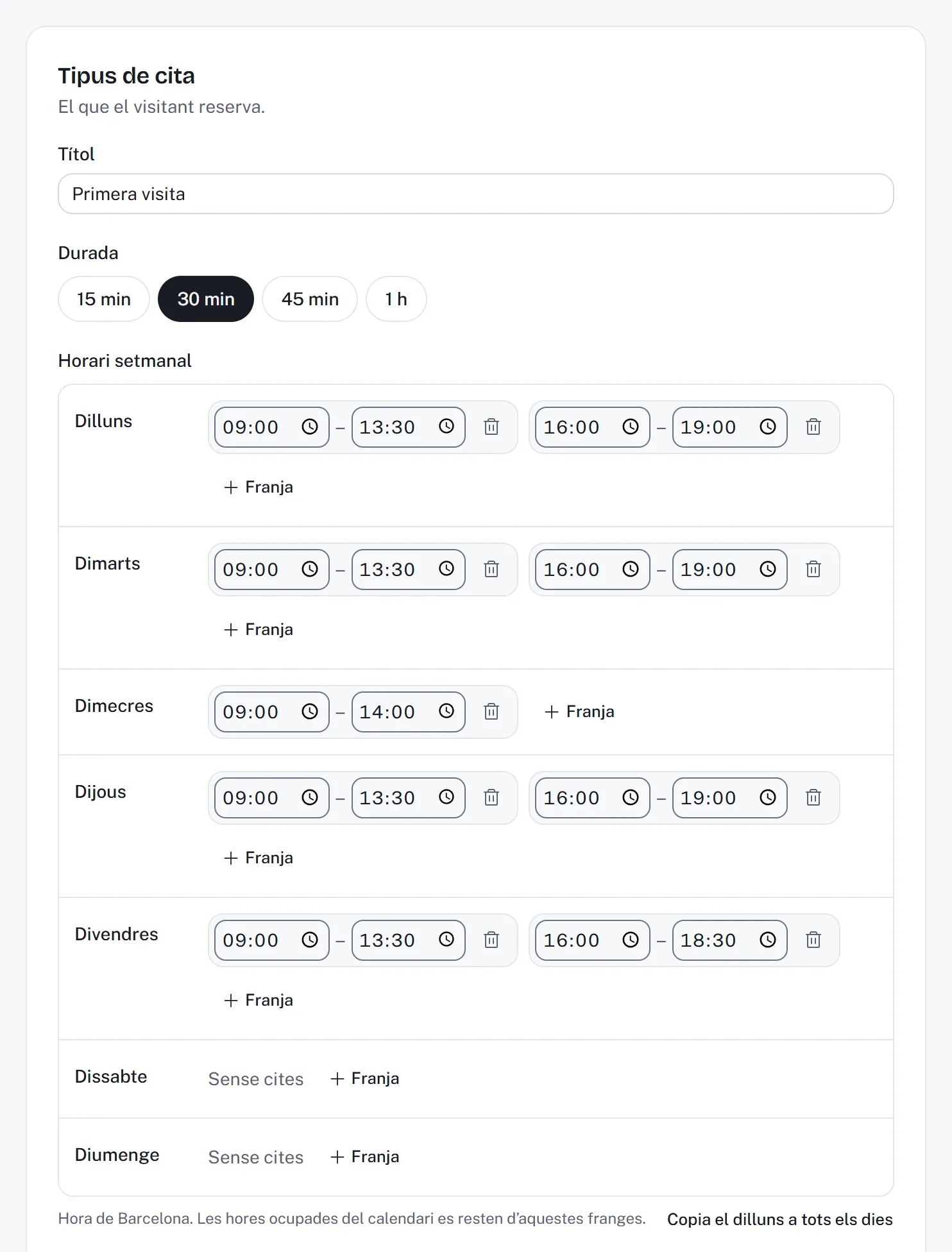
The appointment type and the hoursThe title and length, and the hours for each day of the week, with as many time ranges as you need (morning and afternoon, for example). 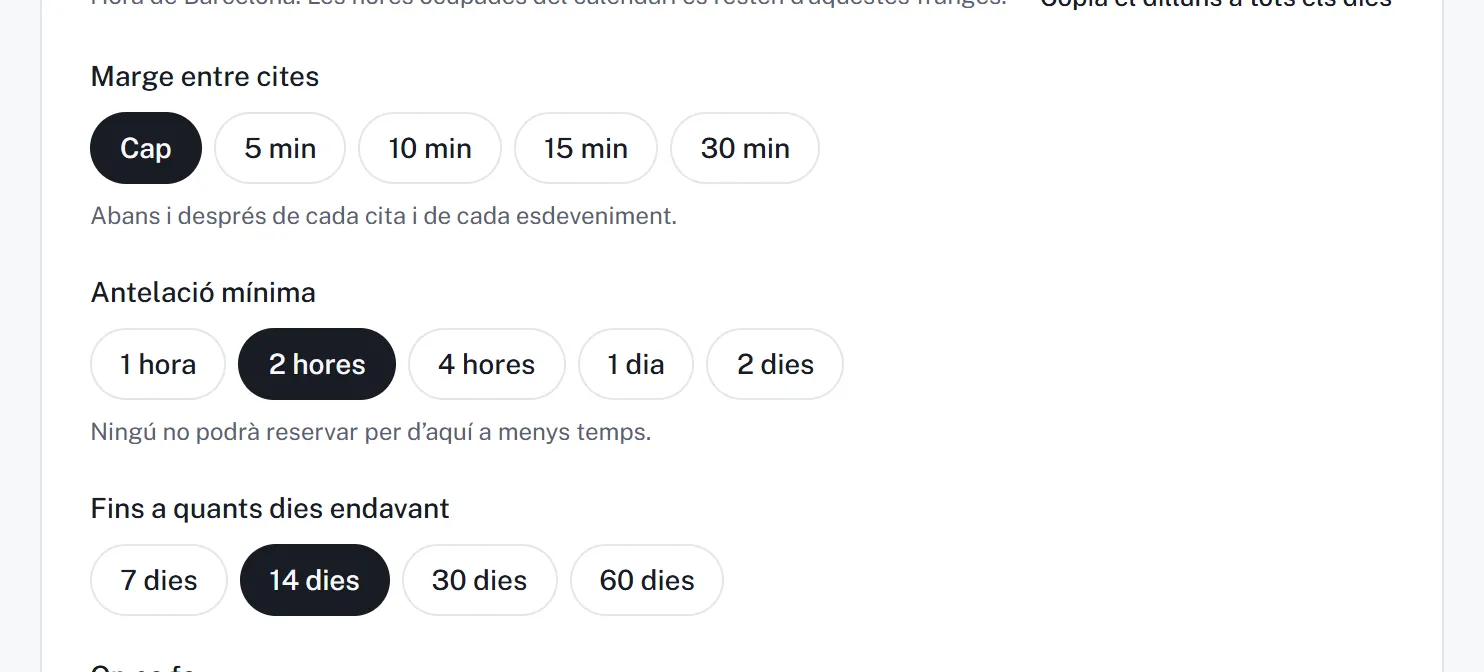
Buffers and noticeThe buffer between appointments, the minimum notice (nobody books for an hour from now unless you want them to) and how many days ahead people can book. 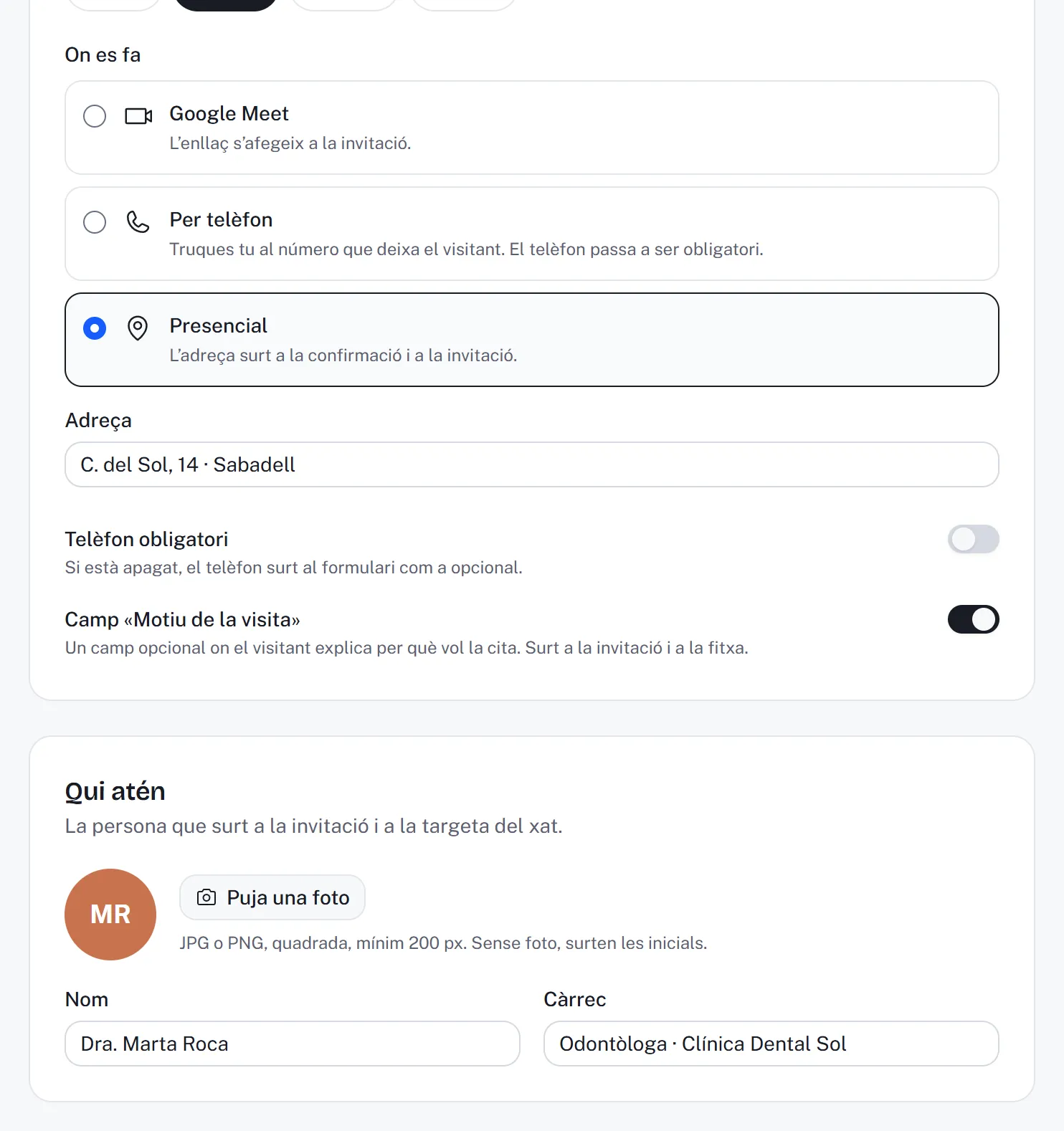
Where it happens and who attendsOn Google Meet (the link goes in the invitation), by phone (you call the number the visitor leaves) or in person, with the address. Who attends, with a photo, name and role, and the message visitors read on the invitation. 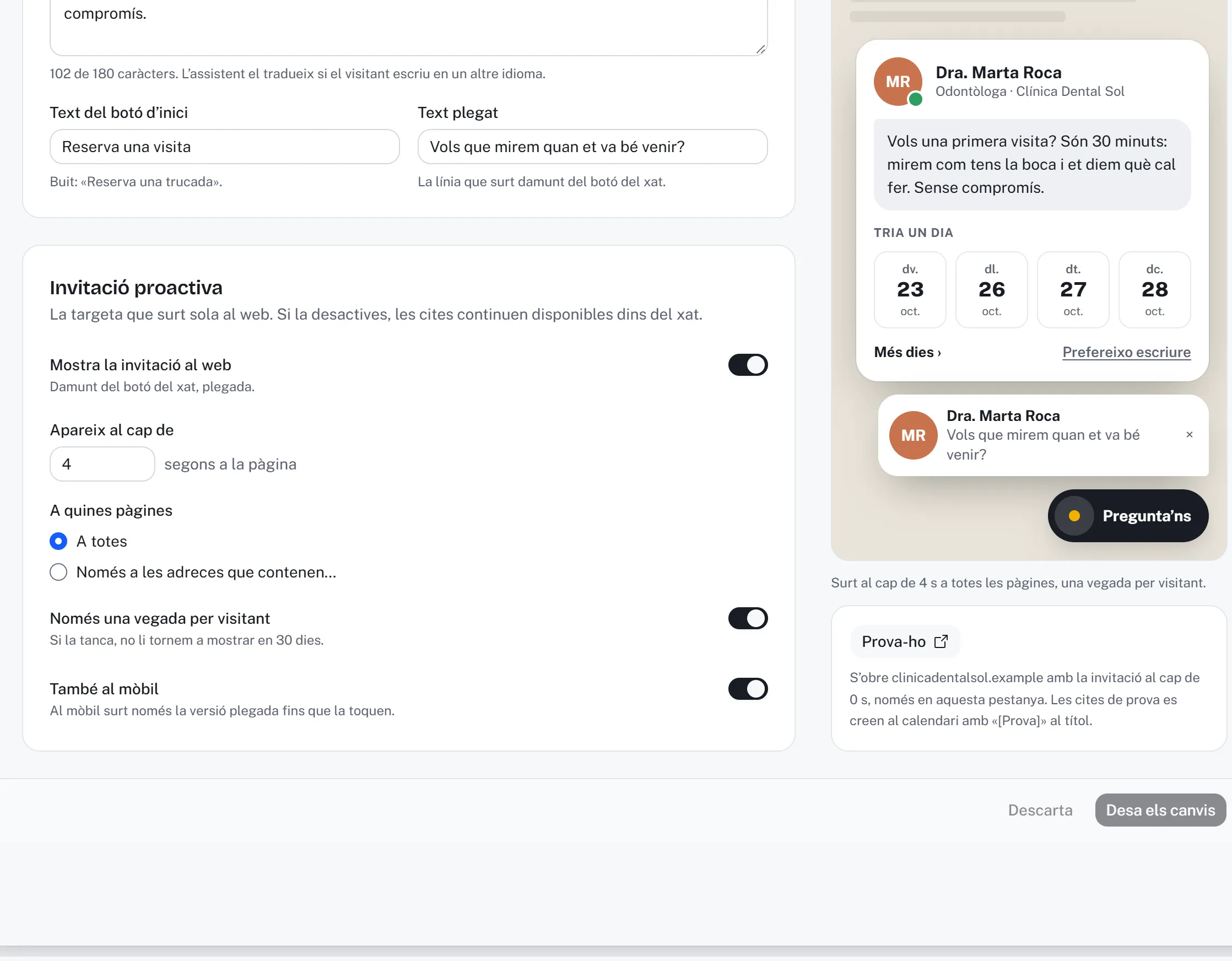
The proactive invitation and “Try it”After how many seconds the card appears, on which pages, only once per visitor and whether it shows on mobile. “Try it” opens your website with the invitation so you can make a test booking: it's created in the calendar with “[Prova]” in the title. Appointments in Conversations
Every conversation with a booking carries the “Appointment booked” label, and the “With appointment” filter shows them all. The conversation's detail has the day, time, the visitor's details and a link to open it in Google Calendar.
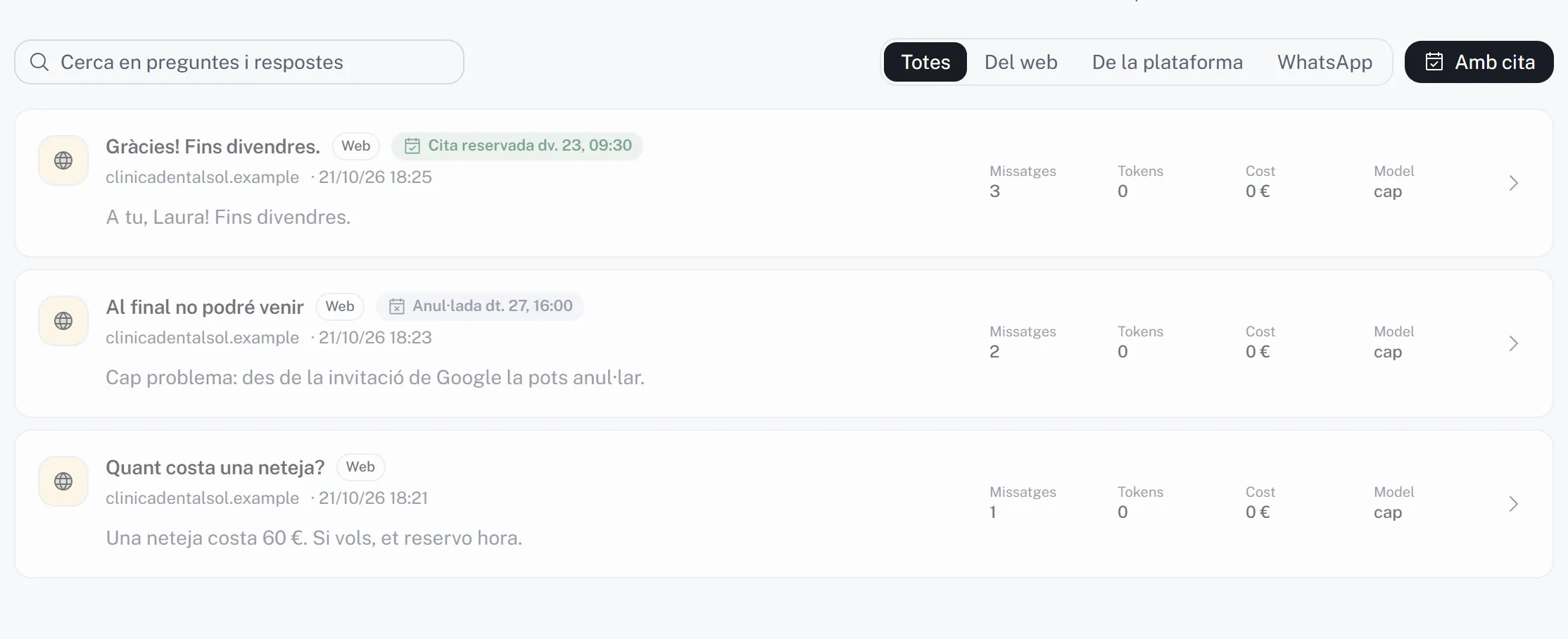
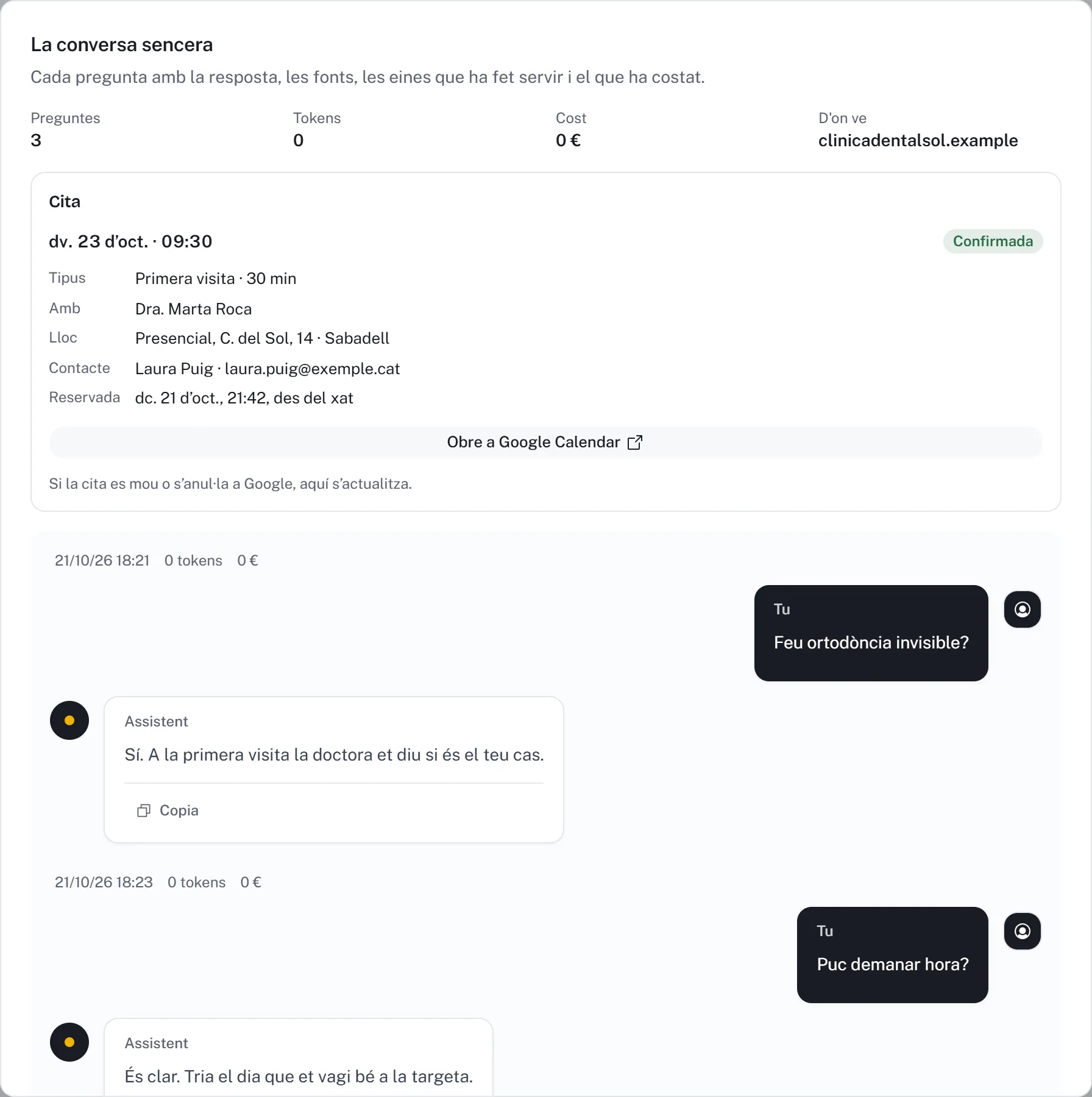
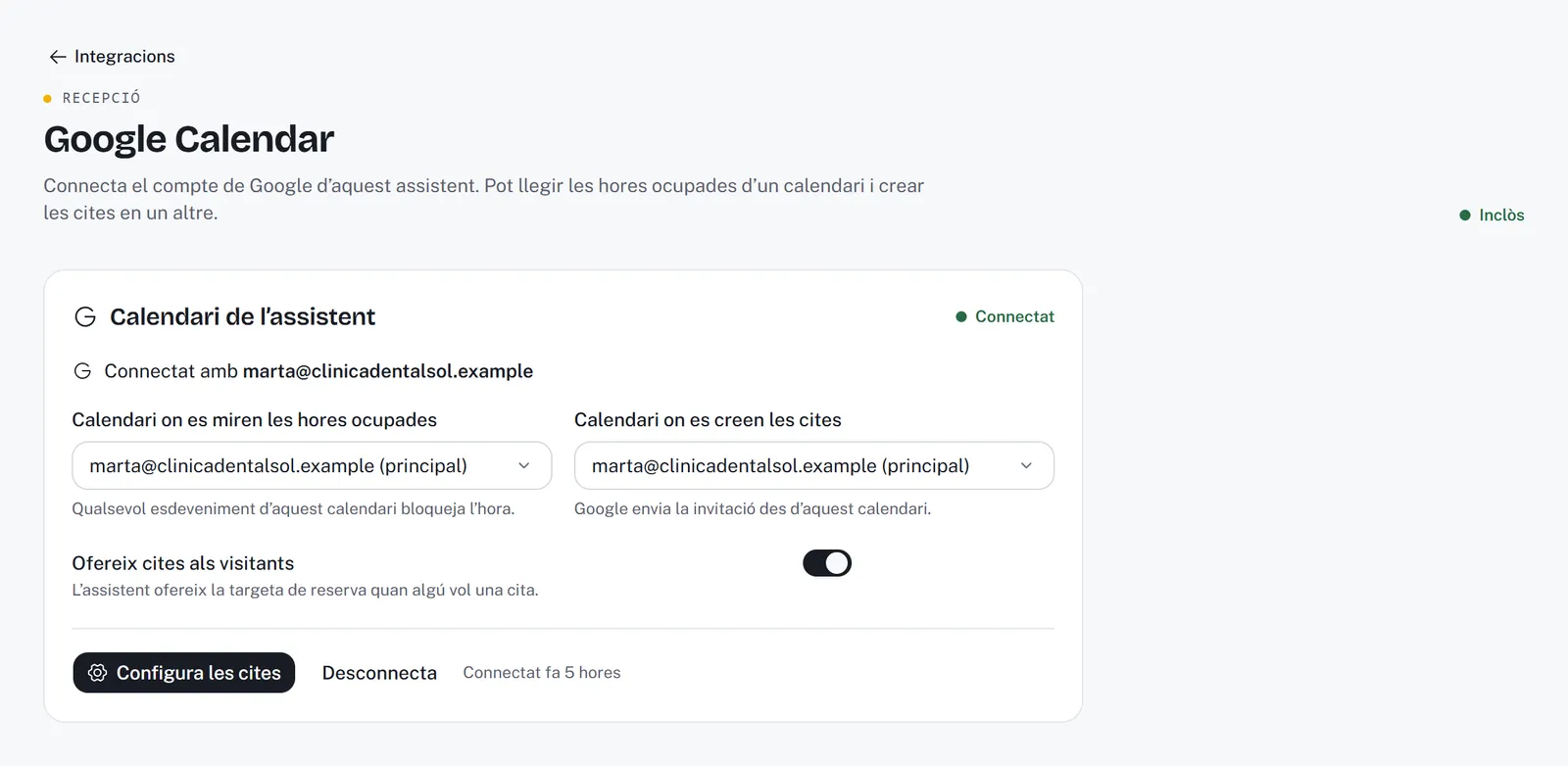
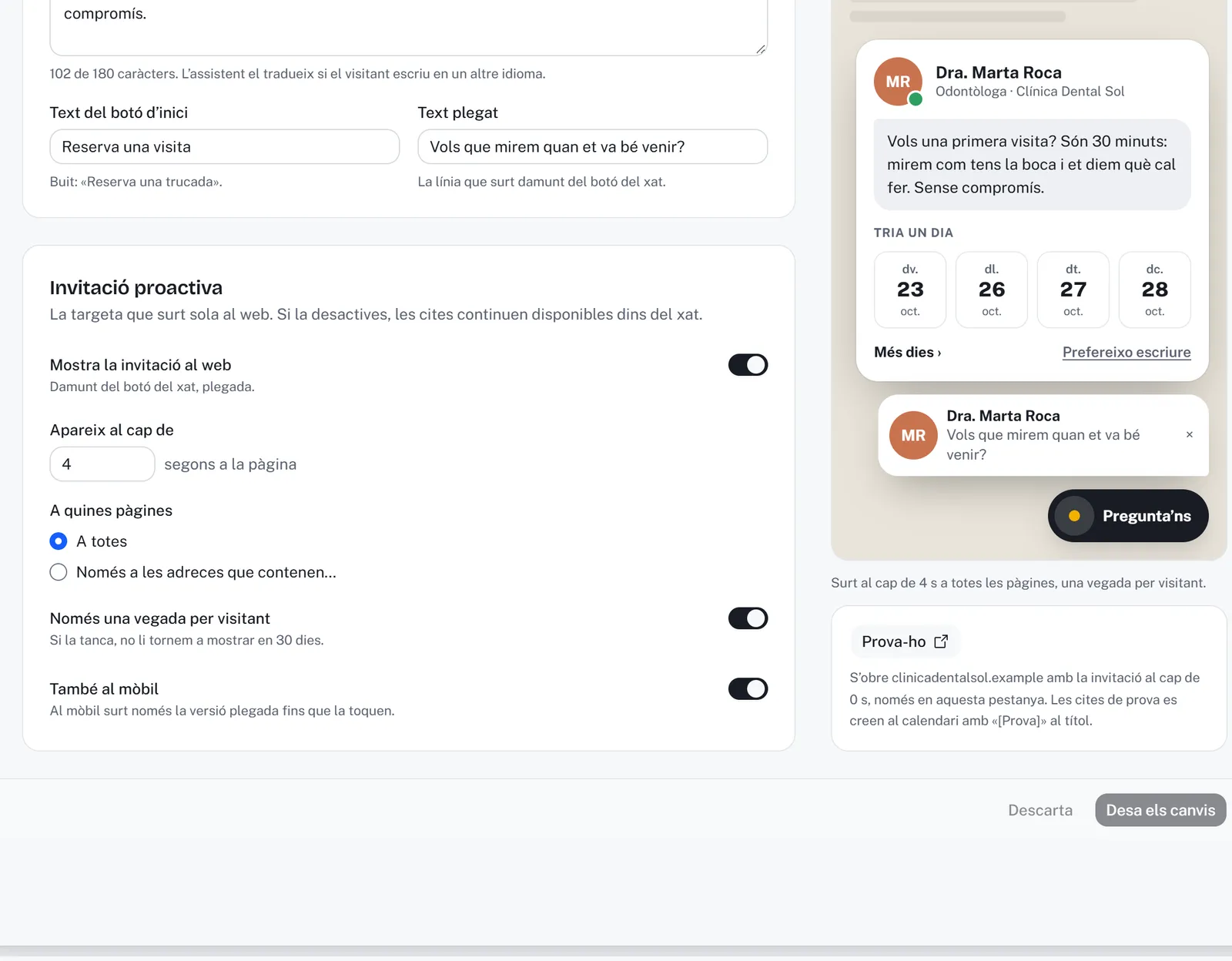
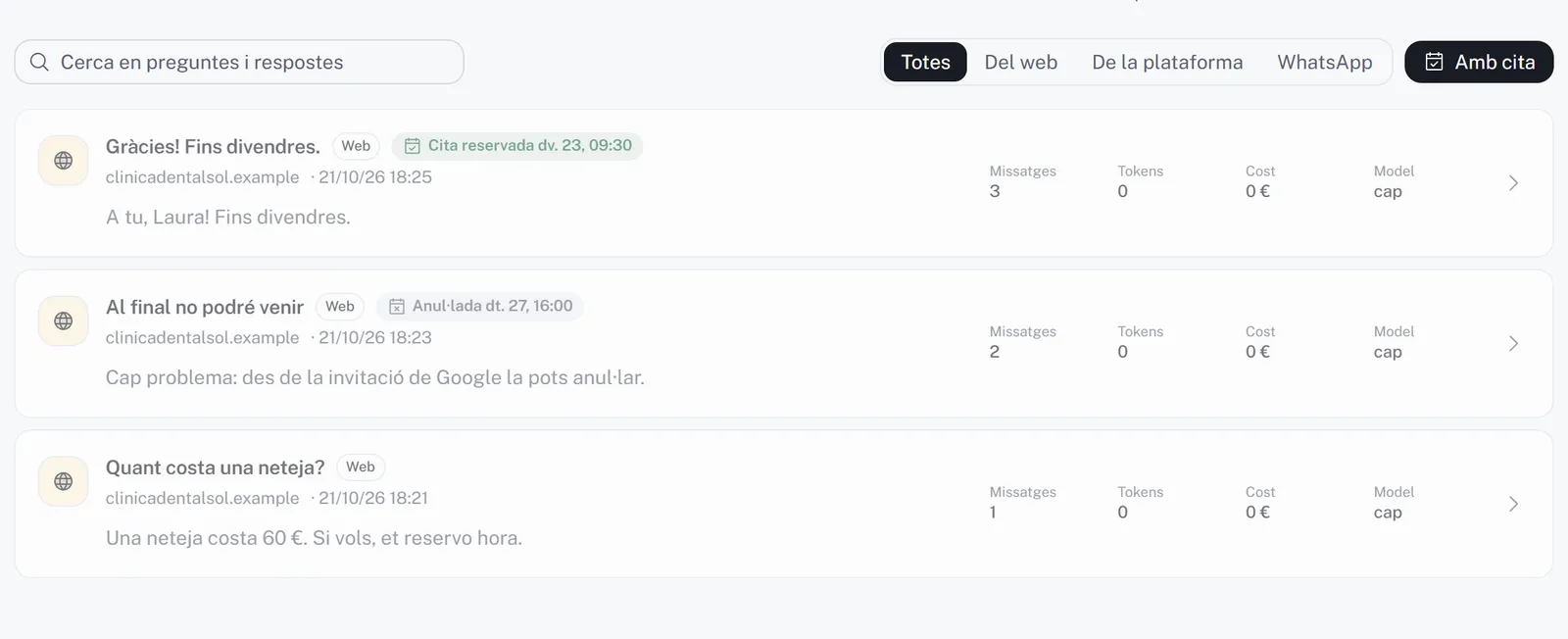
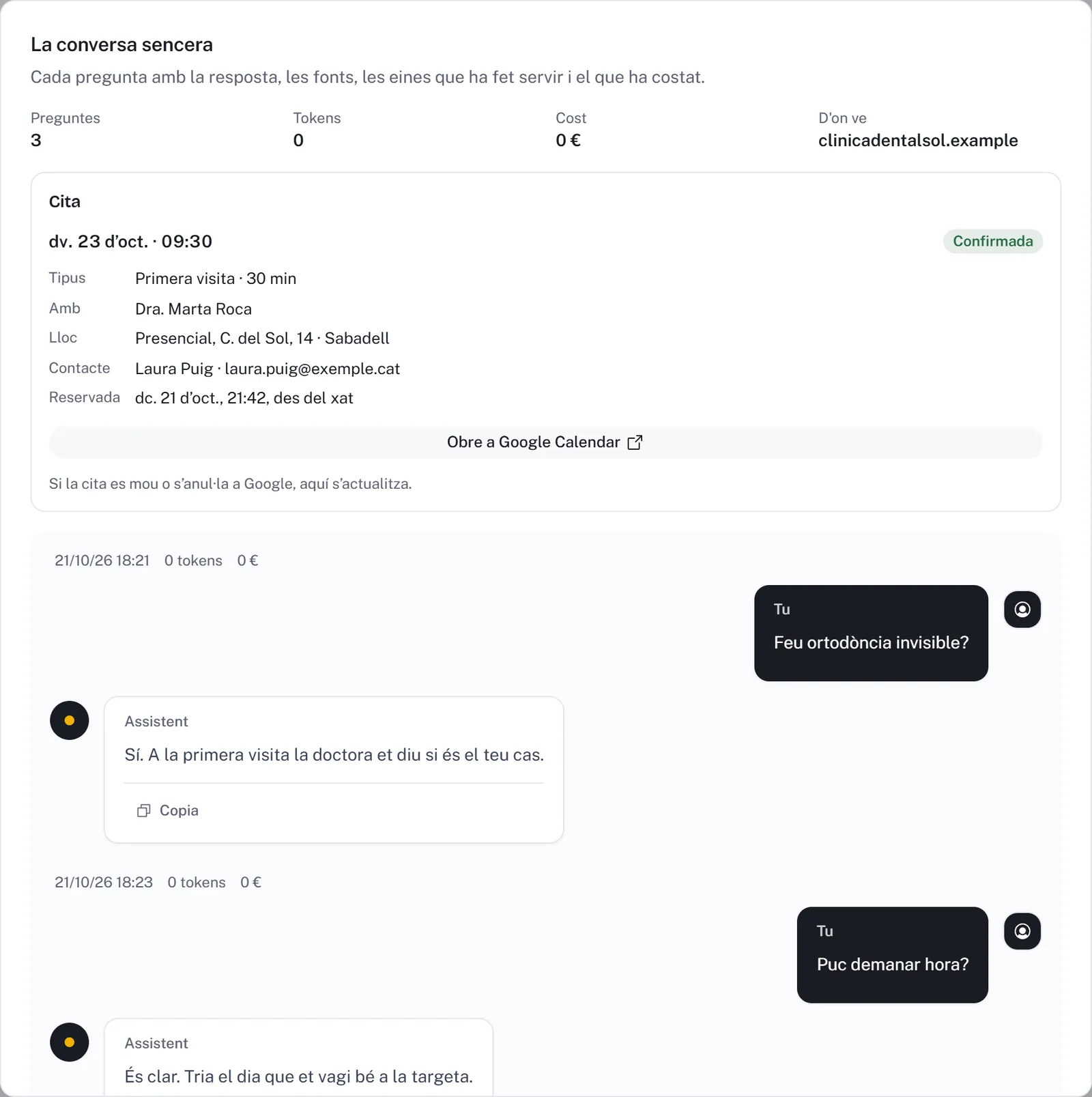
Screenshots of the platform (in Catalan) with sample data. The Google connection is a test one.
Privacy and security
From your calendar, only what's needed
- Only busy or free
- Xerra looks at when you're busy, not at what's in your events: no titles, descriptions or guests. It only reads back the appointments it creates itself.
- The permission, encrypted
- Google's access token is stored encrypted, in the European Union, and never appears in any response or log.
- Disconnect whenever you want
- With “Disconnect” in Xerra, or at myaccount.google.com/permissions. Appointments already created stay in your calendar.
- Limited Use
- Google data is only used for appointments: it isn't sold, used for advertising or used to train AI models, in line with Google's Limited Use requirements.
Questions about appointments
Do I need a Google Workspace account?
No. It works with a regular Google account, like a Gmail one, and with a Google Workspace one. Your diary just needs to be in Google Calendar.
Can several people take appointments?
For now, each assistant connects a single calendar, where appointments are created. If your team shares a calendar, you can use that one; if everyone has their own, you can have one assistant per person.
What if I delete the appointment in Google Calendar?
It's cancelled: Xerra notices when it checks the calendar again, marks it in the conversation and offers that time again. As with any invitation, Google may let the visitor know.
Does booking use up credit?
No. Picking the day and time and adding the details happens on the booking card, without AI. Only the assistant's replies are charged, as always.
Does it work on WhatsApp?
Yes. If the assistant answers on WhatsApp, it offers booking there with list buttons, and the appointment lands in the same Google Calendar.
What about time zones?
You set the hours in the business's time zone. Times show with the city next to them, visitors in another time zone see what time that is for them, and the Google invitation reaches them in their own time.
Want to try it on your website?
We're opening it in small groups. During the demo you pay nothing.
Google Calendar is a trademark of Google LLC.